Free LinkedIn Banner Maker: How to Create a Professional Banner Online
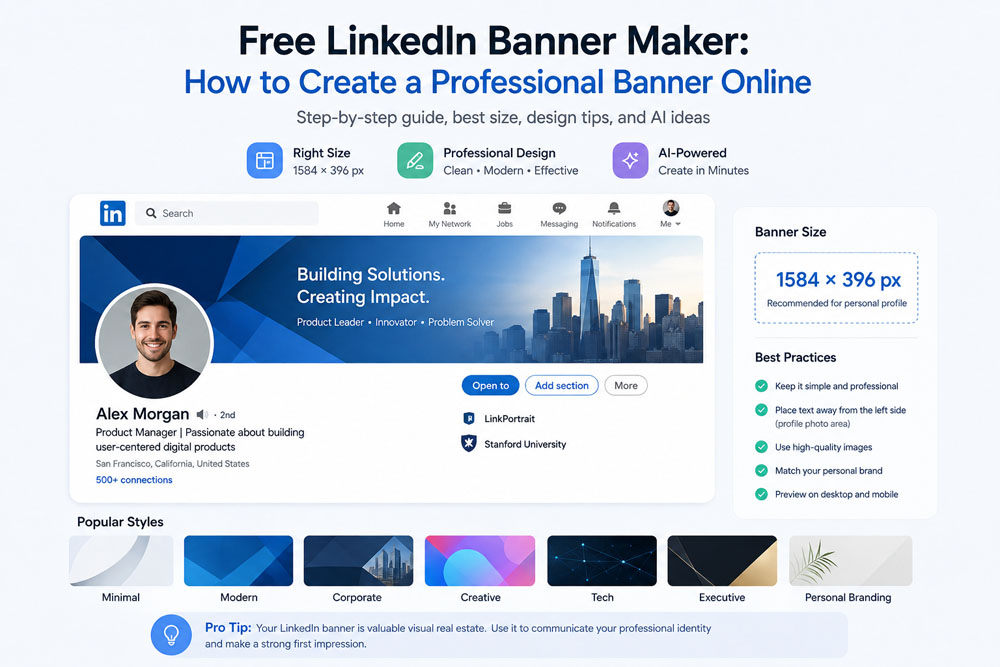
Your LinkedIn profile photo may be the first thing people notice, but your LinkedIn banner is one of the largest visual elements on your profile.
A well-designed banner can make your profile look more polished, communicate your professional identity, and reinforce your personal brand before someone even reads your headline.
The good news is that you don't need Photoshop or professional design skills to create one.
With a free LinkedIn banner maker, you can create a professional LinkedIn banner online in just a few minutes. And with AI-powered design tools, you can go one step further by generating a banner based on your profession, career goals, preferred style, and personal brand.
In this guide, we'll show you how to create a professional LinkedIn banner online, what size to use, what to include, common mistakes to avoid, and how AI can make the process easier.
What Is a LinkedIn Banner?
A LinkedIn banner is the large background image displayed behind your profile photo at the top of your personal LinkedIn profile.
LinkedIn also refers to it as your background photo or cover image.
It occupies a large amount of visual space, making it an excellent opportunity to communicate something about your professional identity.
According to LinkedIn's current specifications, the recommended personal profile background image is 1584 × 396 pixels, in JPG or PNG format, with a maximum file size of 8 MB.
Your banner can be used to communicate:
- Your profession
- Your area of expertise
- Your personal brand
- Your business
- Your services
- Your career goals
- Your industry
- Your professional personality
Instead of leaving the default background in place, a customized banner gives visitors another reason to remember your profile.
Why Does a Professional LinkedIn Banner Matter?
Your LinkedIn profile is more than an online resume.
For many professionals, it functions as a personal landing page.
Recruiters may visit your profile when considering you for a position. Potential clients may check your profile before contacting you. Hiring managers and professional connections may also use your profile to understand your background.
A professional banner can help create a stronger first impression.
However, you don't need an elaborate design.
In most cases, the best LinkedIn banners are:
- Clean
- Professional
- Easy to understand
- Relevant to your career
- Visually consistent
- Easy to read
The goal is not to make the banner more complicated.
The goal is to make it more useful.
What Is the Correct LinkedIn Banner Size?
For a personal LinkedIn profile, the recommended background photo size is:
1584 × 396 pixels
That's a 4:1 aspect ratio.
LinkedIn recommends JPG or PNG and lists an 8 MB maximum file size for the background image.
This is important because using an incorrectly sized image can result in cropping, stretching, or a banner that doesn't look the way you intended.
LinkedIn Personal Banner Specifications
| Specification | Recommended |
|---|---|
| Width | 1584 px |
| Height | 396 px |
| Aspect ratio | 4:1 |
| Format | JPG or PNG |
| Maximum file size | 8 MB |
One important point: personal profile banners and company Page cover images are not the same thing. Make sure you're creating the correct asset for your LinkedIn profile.
How to Create a LinkedIn Banner Online
Creating a professional banner doesn't have to involve complicated design software.
Here's a simple process you can follow.
Step 1: Decide What Your Banner Should Communicate
Before choosing colors or images, decide what you want your banner to say about you.
Ask yourself:
What do I want someone to understand about my professional identity within a few seconds?
For example:
A software engineer might want to communicate:
Software Engineering • AI • Cloud • Innovation
A marketing professional might focus on:
Digital Marketing • Growth • Brand Strategy
A freelance designer might use:
UX/UI Designer • Branding • Creative Strategy
An entrepreneur might emphasize:
Founder • SaaS • AI • Entrepreneurship
Your banner doesn't necessarily need a lot of text.
A simple visual concept can often communicate more effectively than a paragraph.
Step 2: Choose the Right Visual Style
Your LinkedIn banner should match your professional identity.
Here are several popular styles to consider.
Minimal
Clean backgrounds, subtle colors, and plenty of whitespace.
Ideal for:
- Consultants
- Executives
- Lawyers
- Finance professionals
- Corporate professionals
Modern
Geometric elements, gradients, and contemporary layouts.
Ideal for:
- Technology professionals
- Product managers
- Startups
- Marketing professionals
Creative
More expressive colors, illustrations, patterns, or artistic elements.
Ideal for:
- Designers
- Photographers
- Content creators
- Creative directors
Technology
Digital patterns, abstract interfaces, futuristic visuals, and subtle technology elements.
Ideal for:
- Software engineers
- AI professionals
- Data scientists
- Cybersecurity professionals
Personal Branding
A banner designed around your name, expertise, services, or professional message.
Ideal for:
- Freelancers
- Coaches
- Consultants
- Founders
- Personal brands
The important thing is consistency.
Your banner should feel like it belongs to the same professional identity as the rest of your profile.
Step 3: Keep Important Information Away From the Profile Photo
One of the biggest LinkedIn banner design mistakes is putting important text in the wrong location.
Your LinkedIn profile photo overlaps part of the banner, particularly toward the lower-left area on desktop.
LinkedIn also notes that how the cover image appears can vary depending on browser window size and screen resolution.
That means you shouldn't place your most important information directly behind your profile photo.
Instead, consider putting your main message toward the center or right side of the banner.
For example:
Avoid:
Your name
Job title
Website
all positioned in the lower-left corner.
Better:
AI Product Designer
Building simple products with AI
[Website]
positioned toward the center-right.
This gives your content more room to breathe and reduces the chance of important information being hidden.
Step 4: Add a Simple Professional Message
Your LinkedIn banner doesn't need to contain text.
But a short message can be useful if it adds meaningful context.
For example:
Software Engineer
Building AI-powered products
Marketing Consultant
Helping B2B brands turn traffic into growth
Real Estate Agent
Helping families find the right home
UX Designer
Designing simple digital experiences
Founder
Building products at the intersection of AI & creativity
Keep the message short.
Your LinkedIn headline already contains detailed information about your career, so the banner should complement your profile rather than duplicate everything.
Step 5: Choose Colors Carefully
Your banner colors should match your professional identity.
For a corporate profile, neutral or restrained colors may work well.
For a creative profile, stronger colors can communicate personality.
For technology professionals, modern gradients, dark backgrounds, or abstract digital visuals can work well.
The key is contrast.
If your banner contains text, make sure the text is easy to read against the background.
For example:
Dark background + light text
or
Light background + dark text
usually provides clearer contrast than placing similar colors on top of each other.
Step 6: Use High-Quality Images
A blurry LinkedIn banner can make an otherwise professional profile look unfinished.
LinkedIn recommends using an image with sufficient resolution and notes that larger images can look better when the banner appears blurry or pixelated.
If you're using a photograph, choose a high-quality image.
If you're using an abstract background, make sure the design is generated or exported at an appropriate resolution.
And always start with the correct 1584 × 396 canvas rather than trying to stretch a completely different image into the banner format.
Step 7: Preview Your Banner Before Uploading
One of the most useful features of a good LinkedIn banner maker is a preview.
Your design may look perfect in an editor but appear differently once uploaded to LinkedIn.
The profile photo, interface elements, browser size, and device can affect how the banner is displayed.
Before downloading your final banner, check:
- Is your face covering important content?
- Is the headline easy to read?
- Is the logo visible?
- Is the text too close to the edge?
- Does the design still look good without the editor guides?
- Does the banner look balanced?
If possible, preview the design on both desktop and mobile.
How to Create a LinkedIn Banner for Free
If you don't want to learn complicated design software, a free LinkedIn banner maker can simplify the process.
Instead of starting with a blank canvas, you can begin with a predefined LinkedIn banner size and customize the design.
A typical workflow looks like this:
Choose a style → Add your message → Customize the background → Preview → Download
This can be significantly faster than manually setting up a canvas and designing everything from scratch.
For simple banners, template-based tools can work well.
For more personalized designs, AI-powered tools offer another option.
How AI Can Help Create a LinkedIn Banner
AI can make the banner creation process even easier.
Instead of manually choosing every design element, you can provide information about yourself and let AI generate banner concepts around it.
For example:
Profession: Software Engineer
Goal: Find a new job
Style: Modern
Industry: Artificial Intelligence
An AI LinkedIn banner generator could use those inputs to create a visual concept that matches your professional identity.
You could also describe your desired result directly:
Create a modern professional LinkedIn banner for a senior software engineer specializing in AI and machine learning. Use a clean dark-blue technology aesthetic with subtle abstract digital elements and enough empty space for the profile photo.
This approach can help people who know what they want but don't have professional graphic design skills.
AI LinkedIn Banner Ideas for Different Professionals
Different careers can benefit from different visual styles.
Software Engineers
Consider:
- Abstract technology backgrounds
- Code-inspired patterns
- AI visuals
- Cloud infrastructure concepts
- Minimal geometric designs
Avoid filling the banner with actual code unless it genuinely supports your personal brand.
Marketing Professionals
Consider:
- Modern gradients
- Brand strategy visuals
- Abstract growth concepts
- Clean typography
- Digital marketing imagery
A concise value proposition can work particularly well here.
Lawyers
A more restrained visual style may be appropriate.
Consider:
- Dark blue
- Neutral colors
- Architectural imagery
- Minimal typography
- Elegant geometric patterns
The goal should be credibility rather than visual complexity.
Nurses and Healthcare Professionals
A professional healthcare-inspired banner can reinforce your industry.
Consider:
- Clean medical environments
- Soft professional colors
- Healthcare-related abstract graphics
- Minimal layouts
- Subtle medical imagery
This can work particularly well when combined with a professional headshot.
Real Estate Professionals
Consider:
- Architecture
- Modern homes
- City skylines
- Local market imagery
- Personal branding
A simple message such as:
Helping buyers and sellers navigate the real estate market
can make the purpose of your profile immediately clear.
7 LinkedIn Banner Mistakes to Avoid
Even with a free LinkedIn banner maker, it's easy to create a design that doesn't work.
Here are some of the most common mistakes.
1. Using the Wrong Size
Start with the recommended 1584 × 396 pixel canvas for a personal profile.
2. Putting Text Behind Your Profile Photo
Important information should not be positioned where your profile photo can hide it.
3. Using Too Much Text
Your banner is not your resume.
Keep your message short and easy to scan.
4. Using Low-Resolution Images
Blurry graphics can reduce the professional appearance of your profile.
5. Using Too Many Colors
A banner with too many competing colors can look distracting.
Choose a consistent visual palette.
6. Making the Banner Too Generic
A random stock image may technically look professional but doesn't necessarily tell visitors anything about you.
Your banner should have some connection to your career, industry, or personal brand.
7. Forgetting About Mobile
A banner that looks perfect on your computer may appear differently on a smaller screen.
Always check the final result on mobile as well.
Free LinkedIn Banner Maker vs. AI LinkedIn Banner Generator
What's the difference?
A traditional LinkedIn banner maker usually gives you:
- Templates
- Backgrounds
- Text tools
- Shapes
- Colors
- Manual editing
An AI LinkedIn banner generator can automate more of the creative process.
For example, you might provide:
Profession + Goal + Style
and let AI generate several design concepts.
The best option depends on how much control you want.
If you enjoy designing, a traditional editor may be enough.
If you want to create a professional banner quickly without making every design decision yourself, AI can be much more convenient.
How to Create a Professional LinkedIn Banner With LinkPortrait
If you want to create a personalized LinkedIn banner without starting from a blank canvas, you can use an AI-powered workflow.
With LinkPortrait, the idea is simple:
Choose your professional direction → Select a visual style → Generate a banner → Review the result → Download your favorite design
You can create banner concepts for different professional identities, including technology, marketing, healthcare, consulting, entrepreneurship, and personal branding.
The advantage of using AI is that you can generate multiple visual directions and choose the one that best fits your profile.
You can also pair your LinkedIn banner with a professional AI headshot to create a more consistent profile identity.
Create Your AI LinkedIn Banner →
A Simple LinkedIn Banner Formula
If you're not sure what to put on your banner, try this simple formula:
Professional Identity + Value Proposition + Visual Style
For example:
Senior Product Manager
Building products people actually want to use
with a clean modern technology background.
Or:
AI Marketing Consultant
Helping businesses turn AI into practical growth
with a modern personal-branding design.
Or simply:
UX Designer
with a clean abstract design and no additional text.
You don't have to fill every part of the banner.
Sometimes simplicity creates a stronger professional impression.
LinkedIn Banner Checklist
Before uploading your new banner, use this checklist:
Technical
- ✓ 1584 × 396 pixels
- ✓ JPG or PNG
- ✓ Under 8 MB
- ✓ High-resolution source
Design
- ✓ Clear visual hierarchy
- ✓ Easy-to-read text
- ✓ Consistent colors
- ✓ Professional appearance
- ✓ Enough whitespace
Profile
- ✓ Relevant to your profession
- ✓ Supports your personal brand
- ✓ Doesn't duplicate your entire headline
- ✓ Important information isn't hidden behind your profile photo
- ✓ Looks good on desktop and mobile
Final Thoughts
A LinkedIn banner doesn't need to be complicated to be effective.
The best banner is one that makes your profile feel more complete while communicating something meaningful about your professional identity.
Start with the correct 1584 × 396 pixel dimensions. Choose a style that matches your career. Keep your message concise, place important content away from the profile-photo overlap, and use high-quality visuals. LinkedIn itself recommends the 1584 × 396 format for personal profile background photos and allows JPG or PNG files up to 8 MB.
If you don't have design experience, a free LinkedIn banner maker can give you a much easier starting point. And if you want a more personalized result, an AI LinkedIn banner generator can help turn your profession, career goals, and preferred style into a professional visual design.
Your LinkedIn banner is only one part of your profile, but it's valuable visual real estate.
Use it to tell people not just what you do, but what you want to be known for.