How To Take A Professional LinkedIn Photo At Home (2026 Guide)
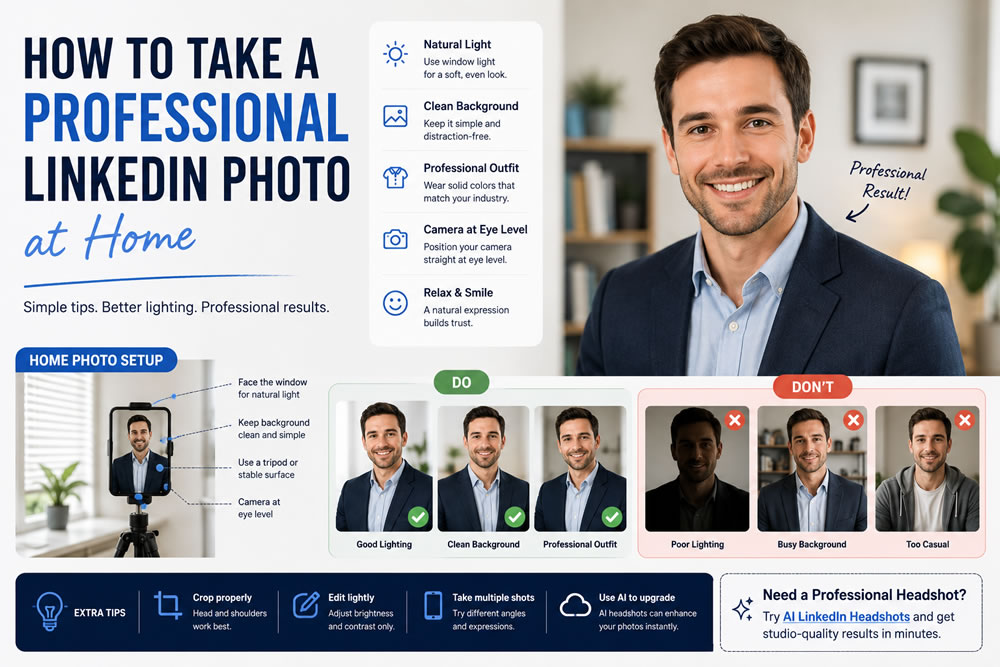
Your LinkedIn profile photo is often the first impression you make on recruiters, hiring managers, clients, and potential business partners.
Before they read your experience or skills, they'll likely notice your profile picture first. A professional photo helps you appear credible, approachable, and confident, while a poor-quality image can undermine an otherwise excellent profile.
The good news is that you don't need an expensive camera or a professional photography studio to create a great LinkedIn headshot. With a smartphone, good lighting, and a few simple techniques, you can take a professional-looking LinkedIn photo right at home.
In this guide, you'll learn how to set up your space, choose the right outfit, pose naturally, and avoid common mistakes—plus discover how AI can help you turn ordinary selfies into polished professional headshots.
Why Your LinkedIn Photo Matters
A LinkedIn profile photo isn't just a picture—it's part of your personal brand.
Whether you're:
Looking for a new job
Growing your professional network
Building a consulting business
Attracting clients
Applying for promotions
your profile photo helps shape people's first impression.
A strong LinkedIn photo communicates:
Professionalism
Confidence
Trustworthiness
Approachability
The goal isn't to look like a model—it's to present the best professional version of yourself.
What You Need Before You Start
You don't need expensive equipment.
A simple setup includes:
A modern smartphone with a good camera
Natural daylight or a soft light source
A clean background
A tripod (optional but helpful)
A phone timer or remote shutter
Most recent smartphones are capable of producing excellent LinkedIn photos when used correctly.
1. Find the Best Lighting
Lighting is the single most important factor in portrait photography.
The best option is natural daylight.
Stand near a large window where soft light falls evenly across your face.
Avoid:
Overhead ceiling lights
Strong midday sunlight
Flash photography
Backlighting that makes your face appear dark
If natural light isn't available, use a soft LED light placed in front of you rather than directly above.
2. Choose a Simple Background
Your background should complement you—not compete for attention.
Good choices include:
Plain white walls
Light gray walls
Neutral-colored rooms
Home office spaces
Softly blurred backgrounds
Avoid:
Busy shelves
Laundry or household clutter
Bright decorations
Strong patterns
A clean background keeps the focus on your face.
3. Wear Professional Clothing
Dress the way you would for an important meeting or interview in your industry.
Examples include:
Corporate Professionals
Blazer
Suit jacket
Dress shirt
Blouse
Tech & Startups
Smart casual shirt
Polo shirt
Simple knitwear
Creative Professionals
Modern business casual
Neutral colors
Minimal accessories
Solid colors usually photograph better than busy patterns or logos.
4. Position Your Camera at Eye Level
Avoid holding your phone too high or too low.
Instead:
Place the camera at eye level.
Stand about one to two meters away.
Use portrait mode if available.
Leave a small amount of space above your head.
Eye-level framing creates a more balanced and confident appearance.
5. Use a Natural Pose
You don't need dramatic poses for LinkedIn.
Keep it simple.
Try:
Standing with relaxed shoulders
Turning your body slightly to one side
Looking directly at the camera
Keeping your hands relaxed (if visible)
Avoid stiff poses or exaggerated expressions.
6. Smile Naturally
One of the biggest mistakes people make is trying too hard to look serious.
A small, genuine smile often creates the best impression.
A natural expression makes you appear:
Friendly
Confident
Approachable
Easy to work with
Practice several expressions and choose the one that feels most authentic.
7. Frame the Photo Correctly
A professional LinkedIn headshot usually includes:
Your face
Your shoulders
The upper chest
Avoid:
Full-body photos
Extreme close-ups
Cropping the top of your head
Large amounts of empty background
Your face should remain clear even when the image is displayed as a small circular profile picture.
8. Take Multiple Photos
Don't settle for the first image.
Take at least 30–50 photos while changing:
Your smile
Head angle
Eye contact
Body position
Small adjustments can make a big difference.
Review the photos on a larger screen before choosing your final image.
9. Edit Carefully
Basic adjustments can improve your photo.
You can:
Adjust brightness
Improve contrast
Correct white balance
Crop the image
Avoid:
Heavy beauty filters
Excessive skin smoothing
Artificial facial modifications
Unrealistic colors
Recruiters should recognize you immediately if they meet you in person.
10. Use AI to Upgrade Your Headshot
If your home photos are clear but lack a polished business look, AI can help.
Modern AI headshot generators can transform ordinary selfies into professional portraits by improving:
Lighting
Backgrounds
Clothing styles
Composition
Image quality
The best AI tools preserve your facial features while creating a clean, studio-quality appearance that's ideal for LinkedIn, resumes, company websites, and professional profiles.
Common Mistakes to Avoid
Many LinkedIn profile photos fail because of simple mistakes.
Avoid:
Selfies taken in the car
Bathroom mirror photos
Vacation snapshots
Party pictures
Heavy filters
Sunglasses
Group photos
Low-resolution images
Your LinkedIn profile should reflect your professional identity—not your weekend activities.
DIY Home Photo vs Professional Photographer vs AI Headshots
DIY Home Photo
Pros
Free
Convenient
Easy to retake
Cons
Depends on lighting
Requires some practice
Professional Photographer
Pros
Expert lighting
Professional posing
Studio equipment
Cons
Expensive
Requires scheduling
Limited photo variations
AI LinkedIn Headshots
Pros
Affordable
Fast
Multiple business styles
Professional-quality backgrounds
No studio visit required
Cons
Results depend on the quality of uploaded selfies
Premium features may require payment
For many professionals, combining a few well-taken home selfies with AI enhancement offers an excellent balance between quality and cost.
LinkedIn Photo Checklist
Before uploading your profile photo, ask yourself:
✓ Is my face clearly visible?
✓ Is the lighting natural?
✓ Am I wearing professional clothing?
✓ Is my background clean?
✓ Does the image accurately represent how I look today?
✓ Would I feel confident sending this photo to a recruiter?
If you answered "yes" to each question, you're ready to update your LinkedIn profile.
Frequently Asked Questions
Can I take a professional LinkedIn photo with my phone?
Absolutely.
Modern smartphones are capable of producing high-quality portraits when combined with good lighting and proper composition.
Should I smile in my LinkedIn photo?
Yes.
A natural, relaxed smile generally creates a more approachable and trustworthy impression.
Is it okay to use AI-generated LinkedIn headshots?
Yes, provided the final image accurately represents your appearance and doesn't create a misleading impression.
Many professionals now use AI-enhanced headshots for LinkedIn, resumes, and company websites.
What color should I wear?
Neutral colors such as navy, gray, black, white, and light blue are excellent choices because they create a timeless and professional appearance.
Final Thoughts
Creating a professional LinkedIn photo at home is easier than ever.
With good lighting, a clean background, professional clothing, and thoughtful composition, you can create a profile picture that helps you stand out to recruiters and employers.
If you want an even more polished result without hiring a photographer, AI headshot technology offers a fast and affordable way to elevate your image while keeping it authentic.
Remember, your LinkedIn photo is more than just a picture—it's part of your professional brand. Investing a little time in getting it right can make a lasting first impression.
Upgrade Your LinkedIn Photo with AI
Ready to create a polished professional headshot?
Use LinkPortrait's AI LinkedIn Headshots to transform your selfies into studio-quality business portraits in minutes.
Create professional photos for LinkedIn, resumes, company websites, and personal branding—without booking a photoshoot.